Help Center
Payroll
Reporting & Payslips

Table of Content

Carrot icon
No items found.

Where can I download the list of expenses that have been added in the Payoneer WFM platform?

You can view and export a detailed list of Expenses from the Expenses section in the platform.

Steps to download the Expenses report:

1. Log in to the Payoneer WFM platform.

2. From the left-hand menu, click Expenses.
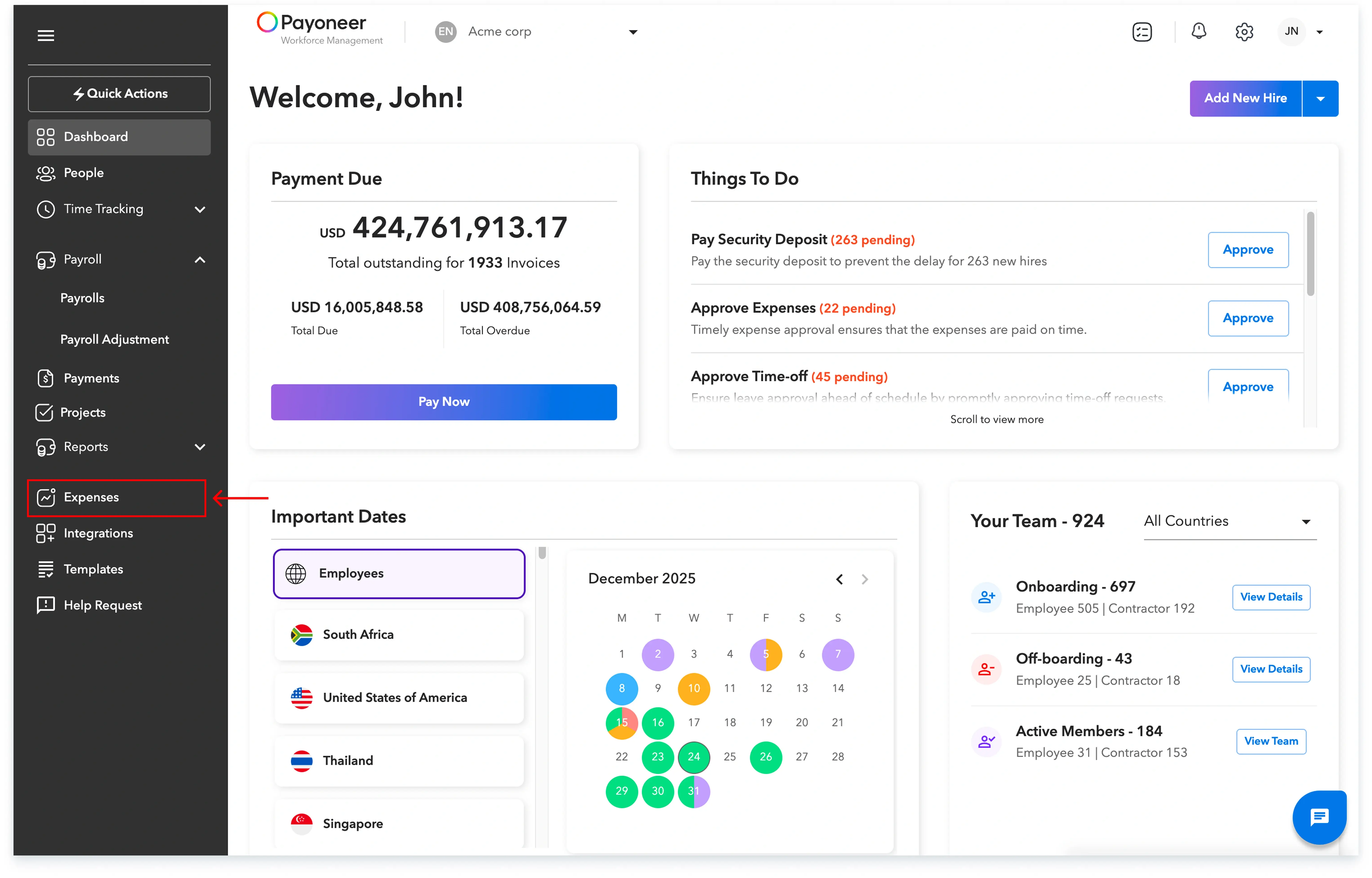
Expenses

3. On the top-right corner, click “More Actions” → “Export”.

Export

4. Set the Date Filter Type:

  • Payroll Month – to filter based on the month in which the Expense was approved and included in payroll, or
Payroll Month
  • Submitted Date – to filter based on the date range when the Expense was submitted.
Submitted Date
  • Approved Date - to filter based on the date range when the Expense was Approved by the Manager.
Approved Date

5. Based on your selection:

  • Choose the Payroll Month, or
  • Enter the Submitted From and To dates,
  • Enter the Approved by Manager From and To dates.

6. Select the Status of Expenses you want to include (e.g. Paid, Draft, Submitted, etc.).
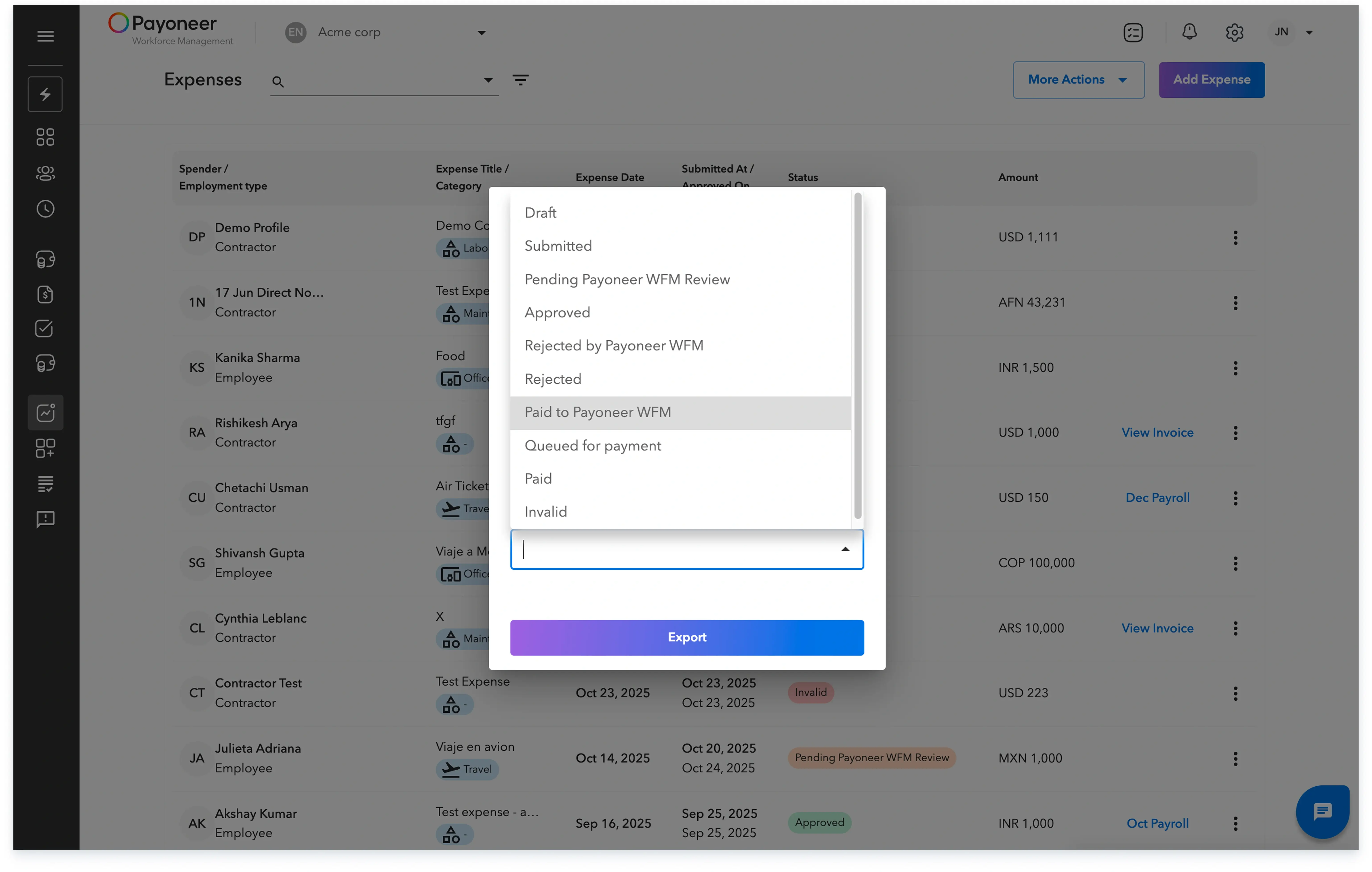
Status of Expenses

7. Click Export to download the report.

This export will give you a consolidated list of all Expenses matching your filters, which you can then review or use for reconciliation.

Skuad is the best solution to hire and expand globally.

Global employment, payroll, teams and expansion, simplified.

Request demo