
You can easily check the current status of any payment made to you directly within the Payoneer WFM platform by accessing your transaction history.
Step-1
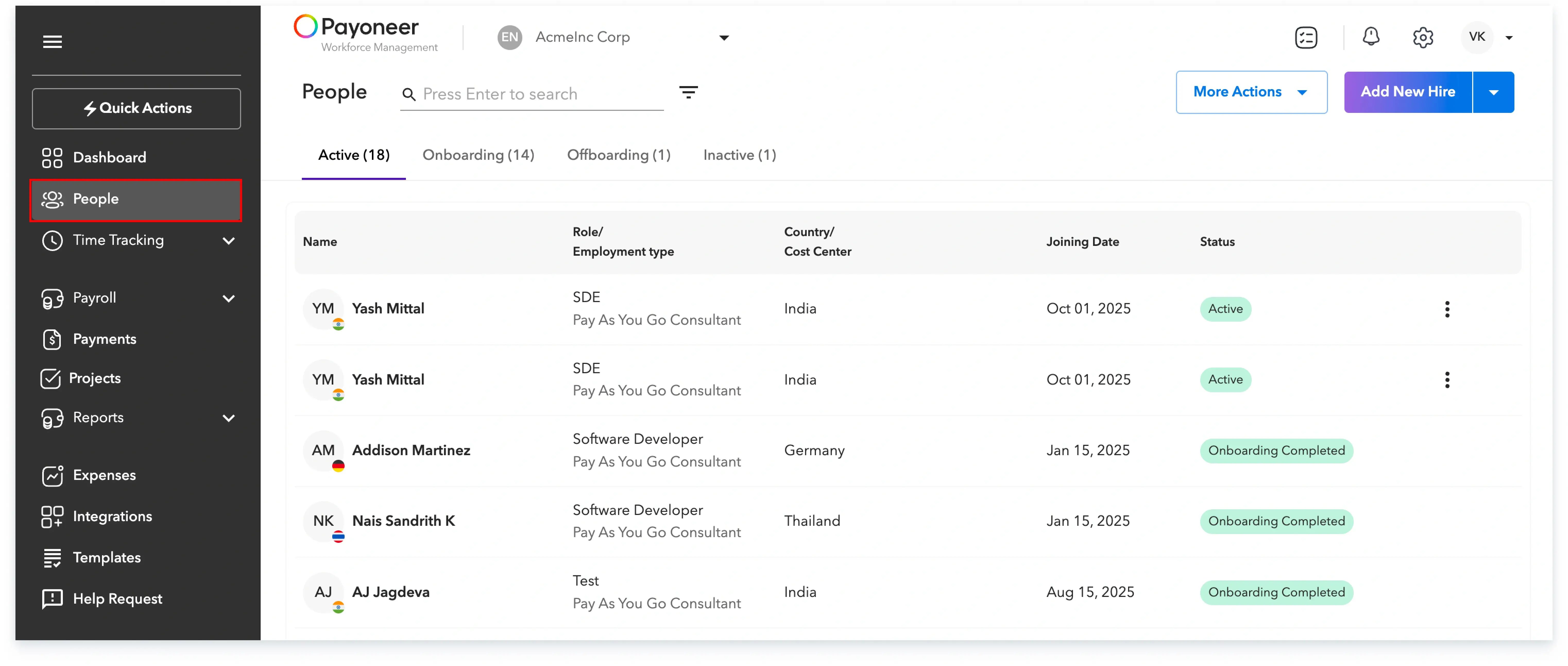
First, you must log into the Payoneer WFM platform. Navigate to the People's section and select the employee for whom you wish to request a revision.
Step-2
Click on More actions and then select Request compensation revision

Step-3
Specify the effective start date for the compensation revision and indicate if you want to change the job details.

Step-4
Enter the new compensation amount and select whether you wish to add a bonus and/or allowance.

Step-5
If you selected to add a bonus or allowance, enter the required details for each.

Step-6
Choose whether you would like to send an email notification to the employee regarding this revision, and review the default email template. Click Next.

Step-7
The compensation revision is now complete, and the notification email has been sent.

Step-8
To view and track the compensation revision request, click on More options and then select View compensation timeline.

You can now see your latest request along with the complete history of compensation revisions processed for the employee.

Global employment, payroll, teams and expansion, simplified.
Request demo