
Short Answer
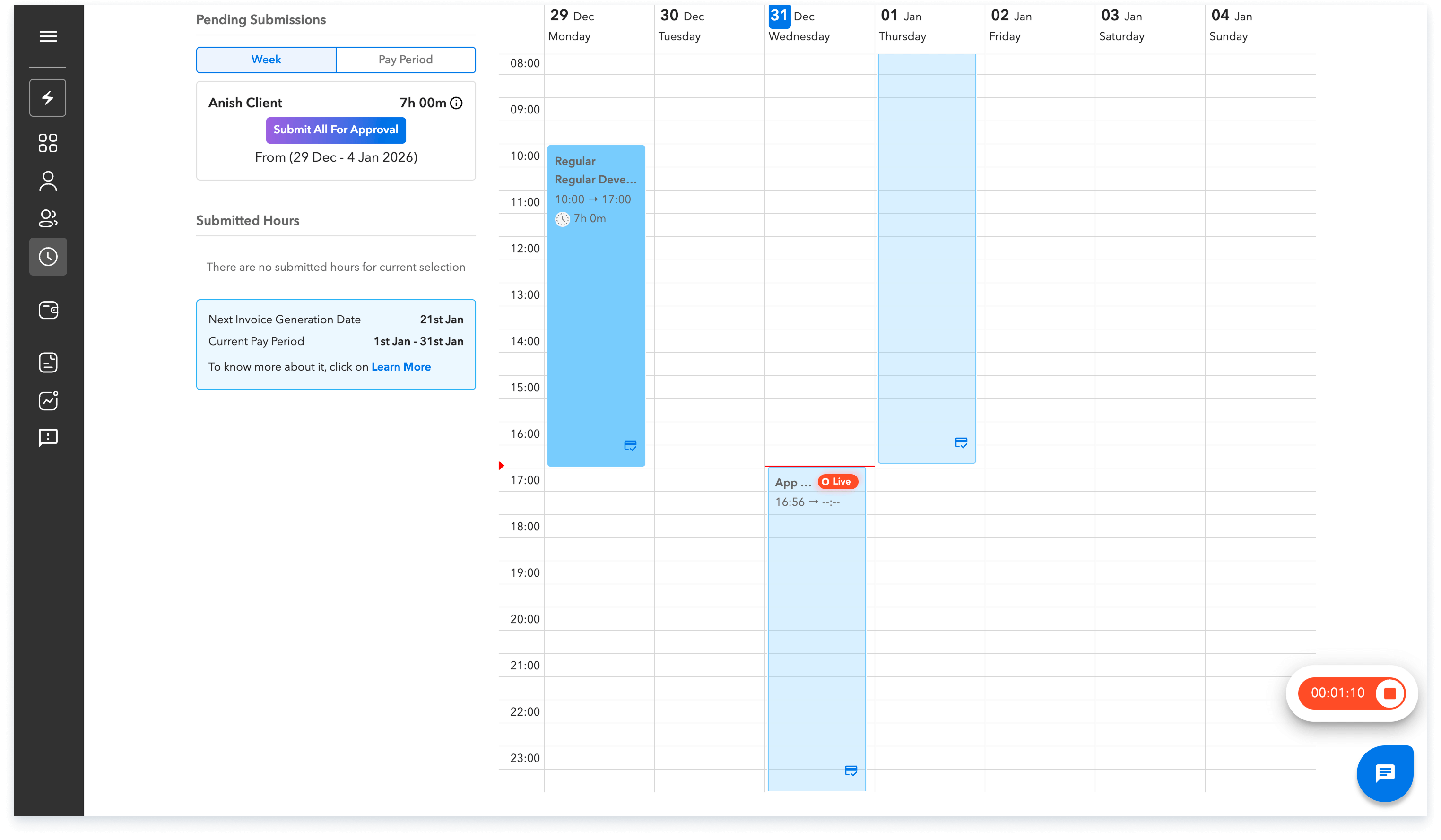
At the end of your shift, return to the Clock In–Out page, click
Clock Out or End shift, and enter any break times or total break duration if prompted.
Long Answer
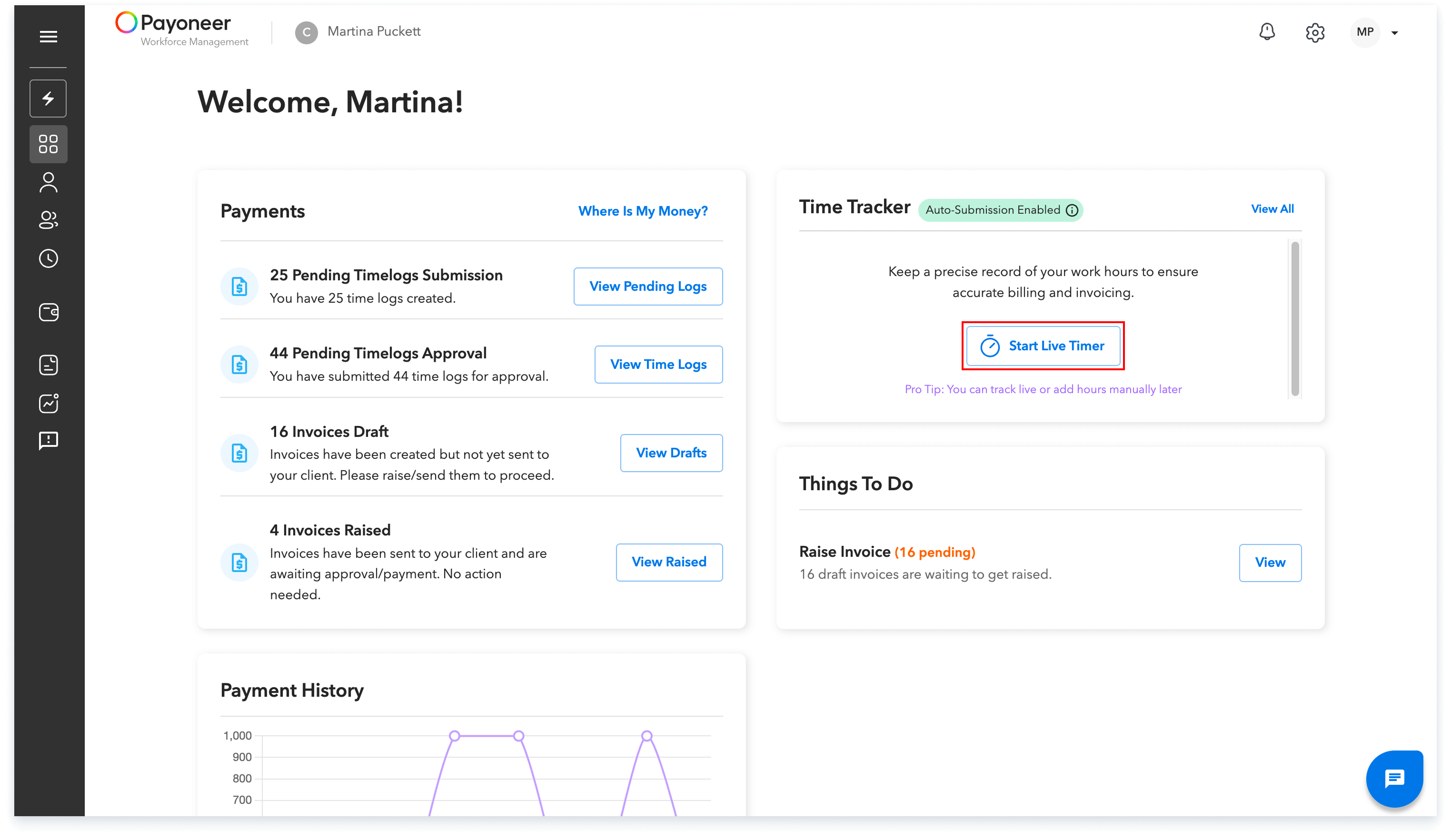
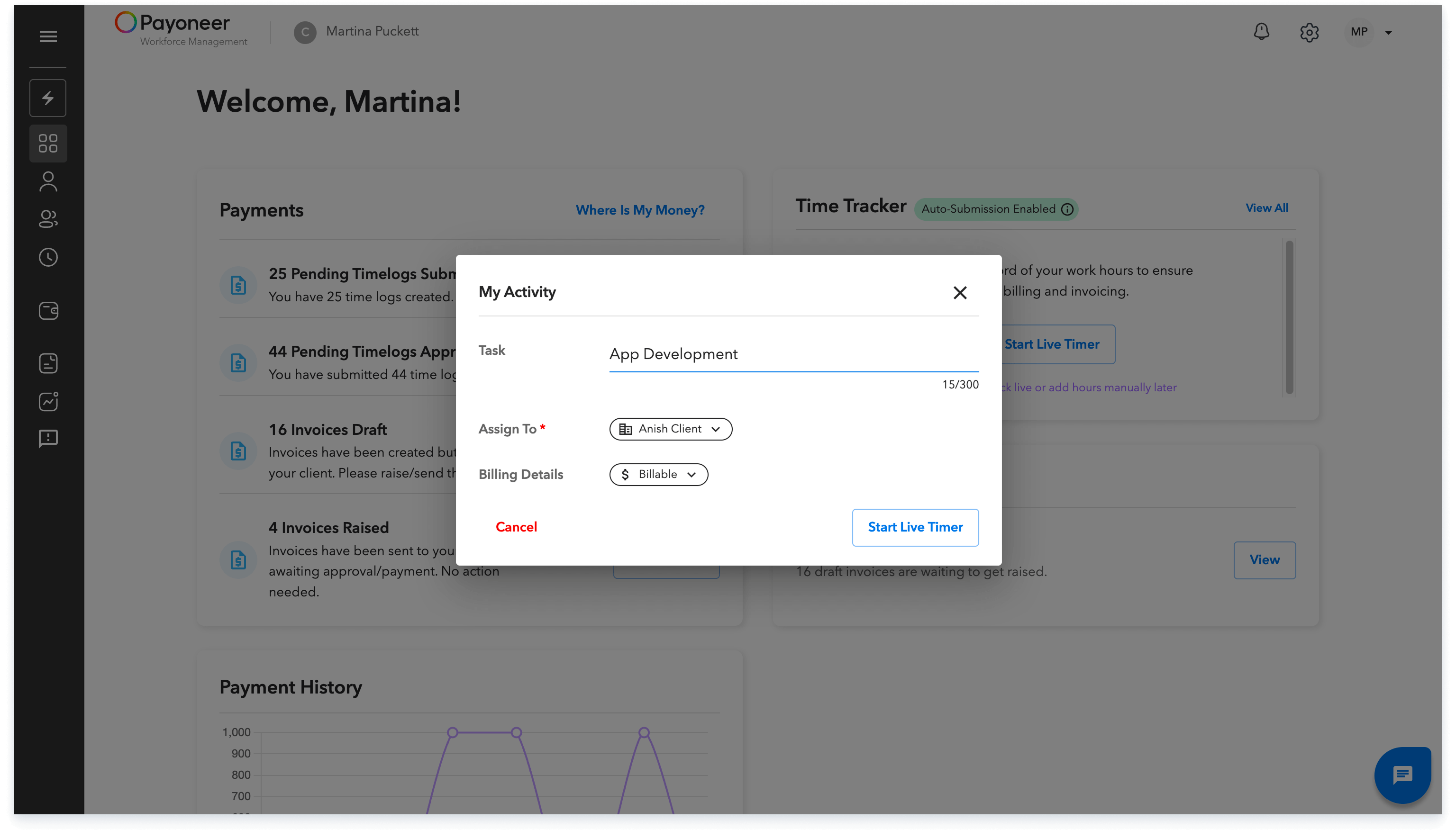
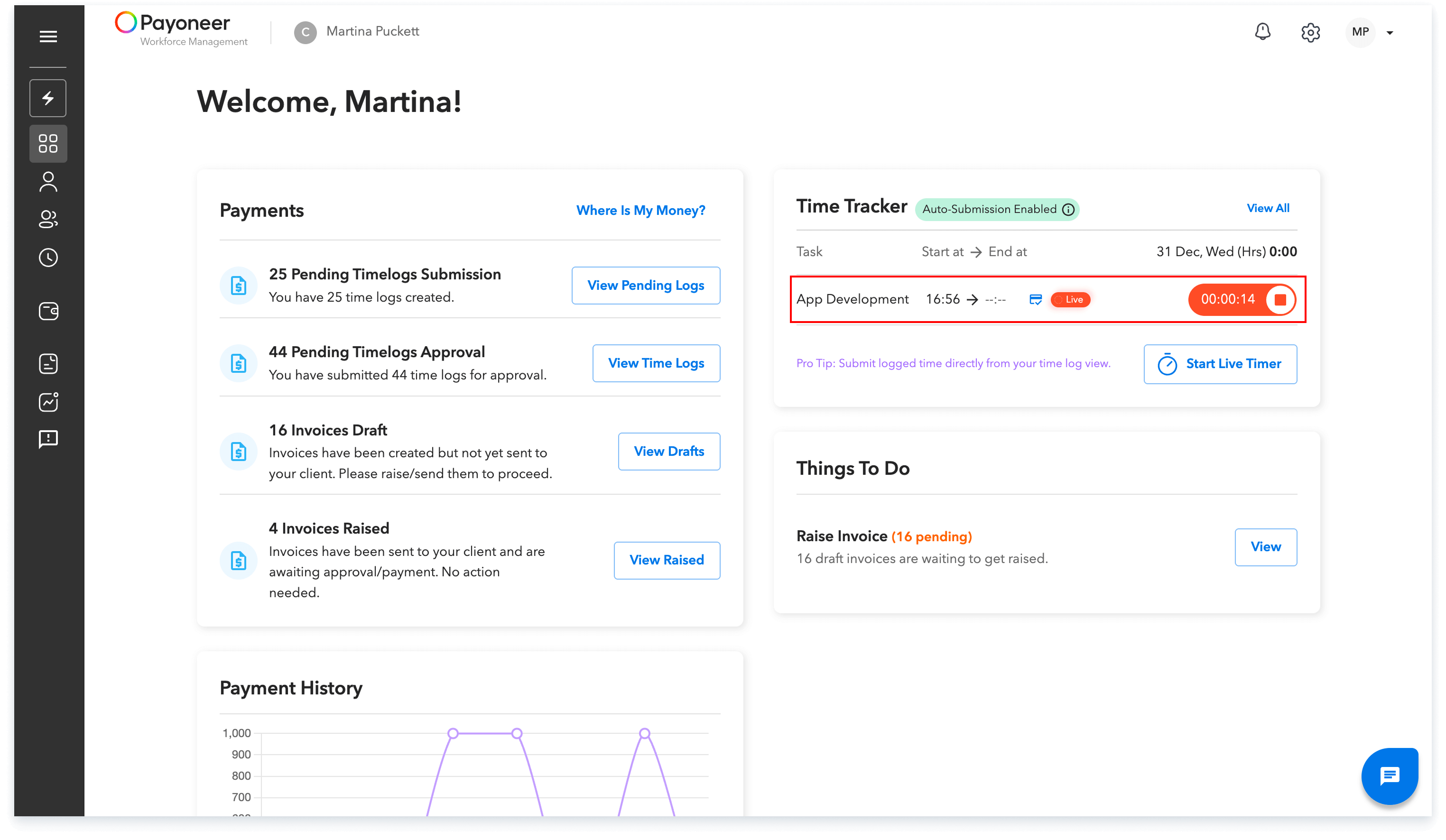
The 'Clock In and Out' feature enables users to accurately track their working hours and submit time records for review or processing
Step-4:
Once you clock out, the time log will be saved automatically.
If the auto-submit setting is enabled, your time log will be instantly submitted for approval—saving you an extra step.
If not enabled, you can still manually review and submit the time log later.
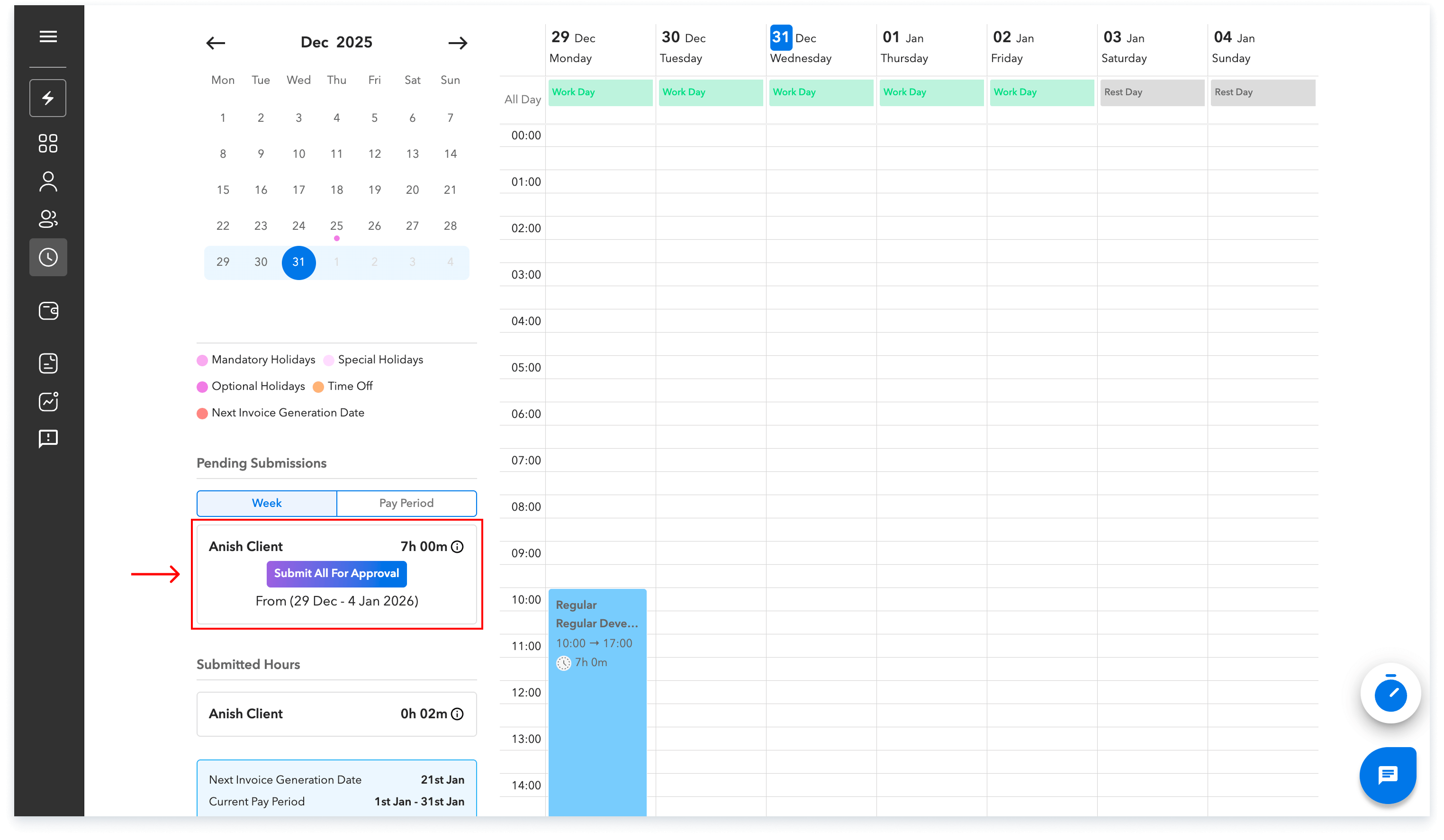
Step-5 : Auto Submission Feature
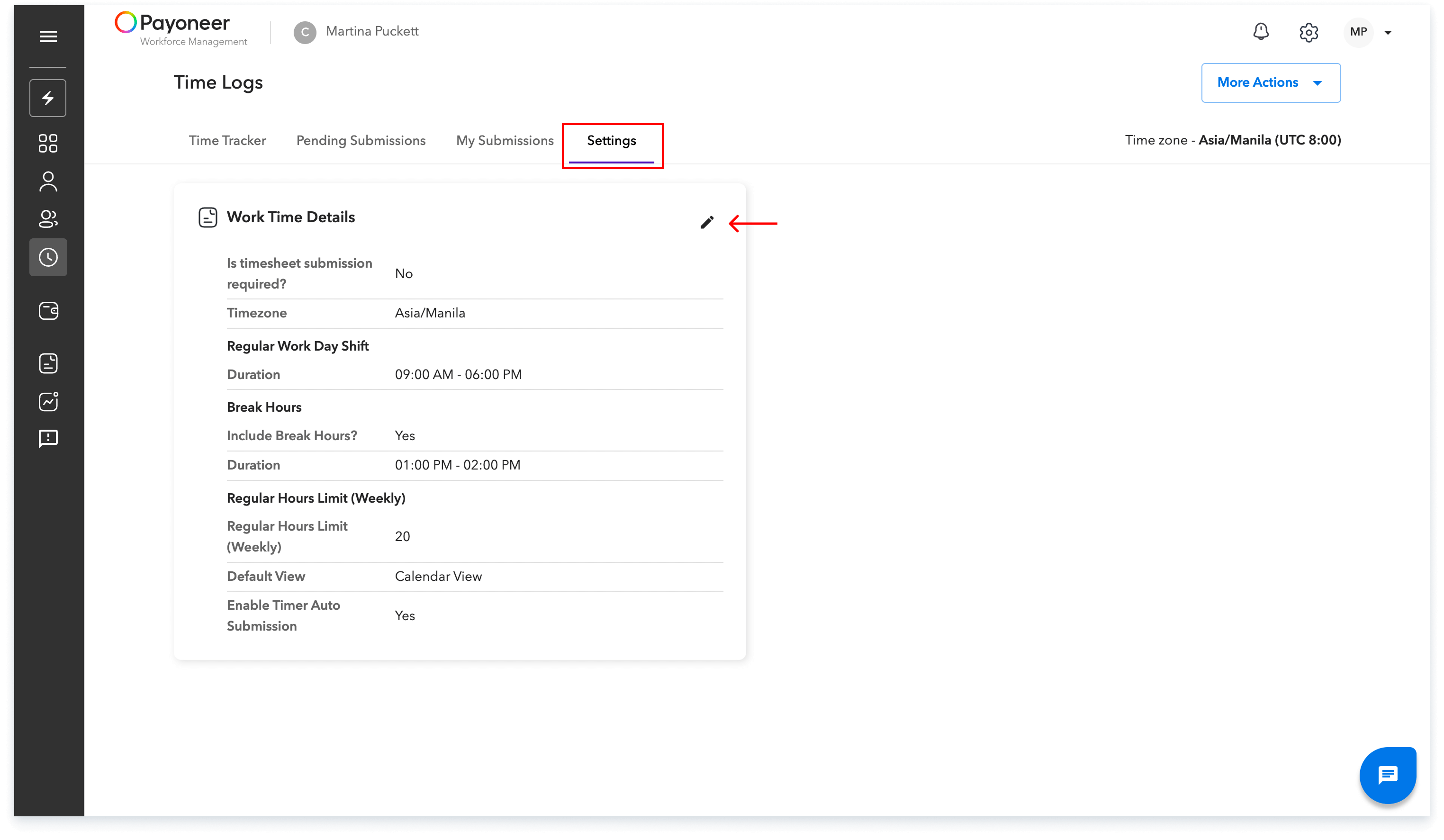
The auto submission feature can be changed by navigating to settings
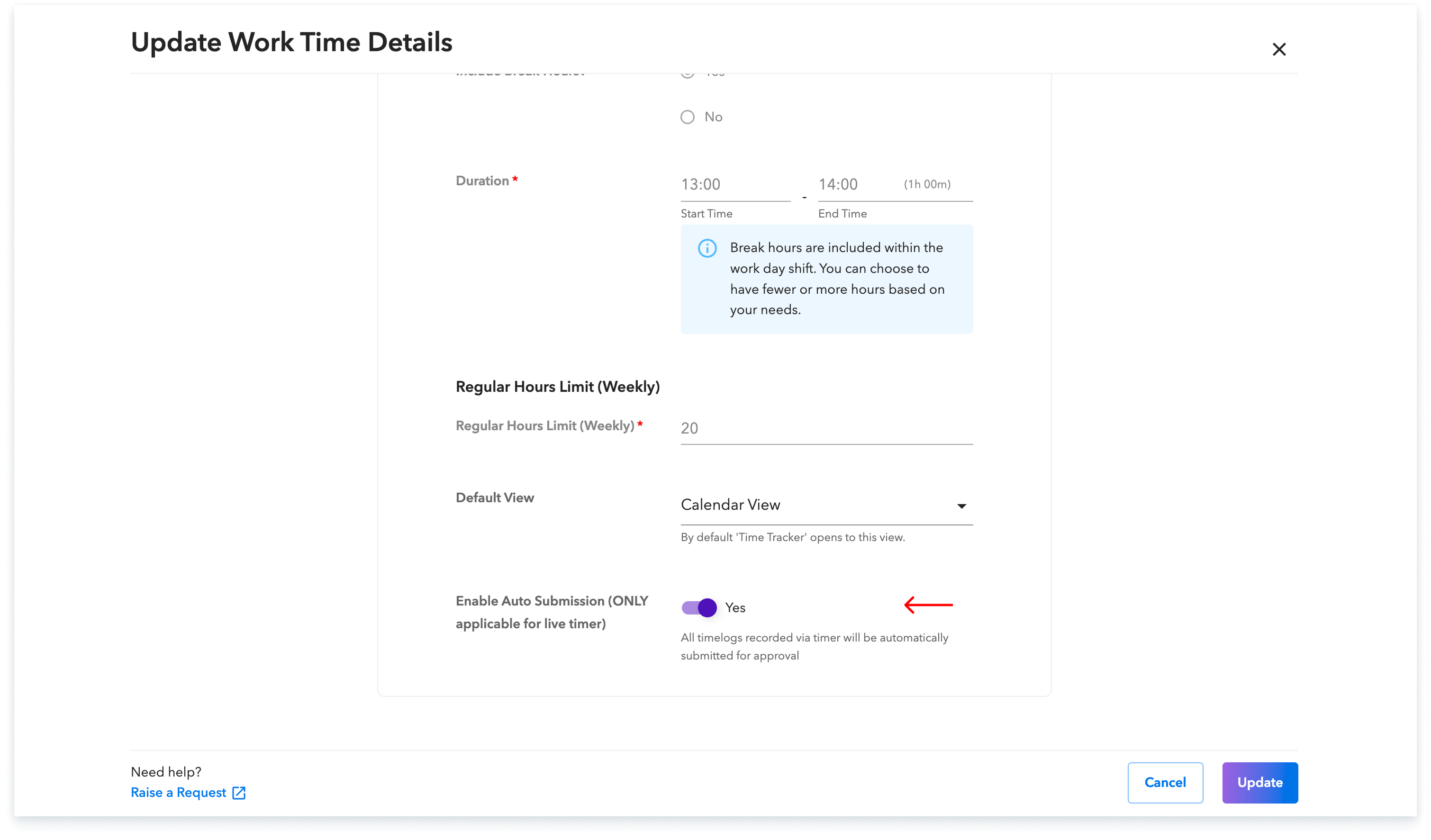
Use the toggle to enable or disable auto submission
Global employment, payroll, teams and expansion, simplified.
Request demo